Reveal
Setup – Step 1 Activate Reveal Pixel
How to Install the Reveal Pixel on Your Website
Reveal works by placing a small tracking script (called the Reveal Pixel) on your website. This pixel allows Reveal to identify and surface anonymous website visitors once they interact with your site.
There are two supported installation methods:
• Google Tag Manager (recommended)
• WordPress plugin installation
• Shopify plugin installation (recommended for Shopify sites)
You only need to complete one option.
Before you begin
You will need:
• Access to your website (or someone on your team who has access)
• Access to Google Tag Manager or WordPress (depending on the option you choose)
• Your Reveal Pixel code provided through CORE CONNECT
Google Tag Manager Installation Guide:
Step 1.
Login to Google Tag Manager and Navigate to Tags
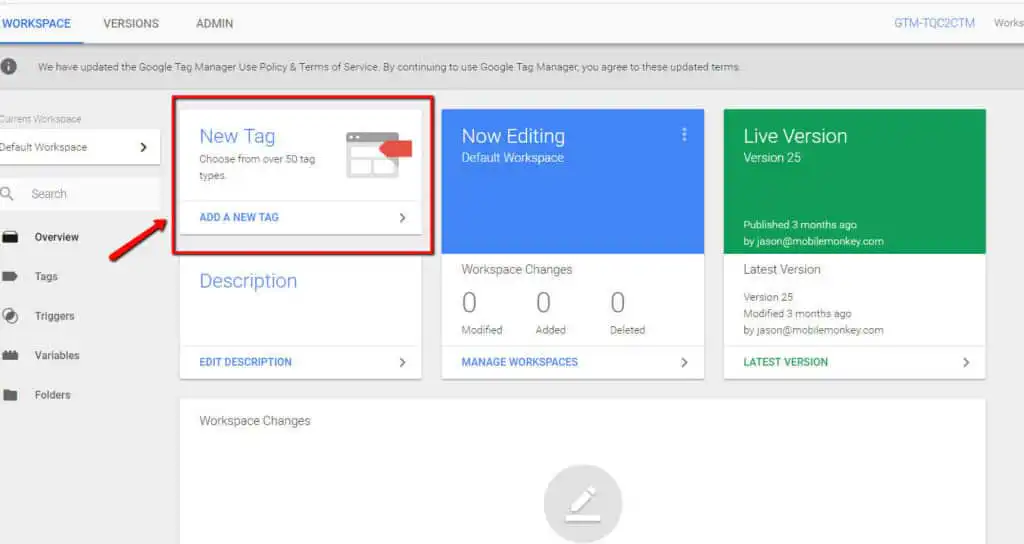
Step 2.
Select “Custom HTML” as your tag type.
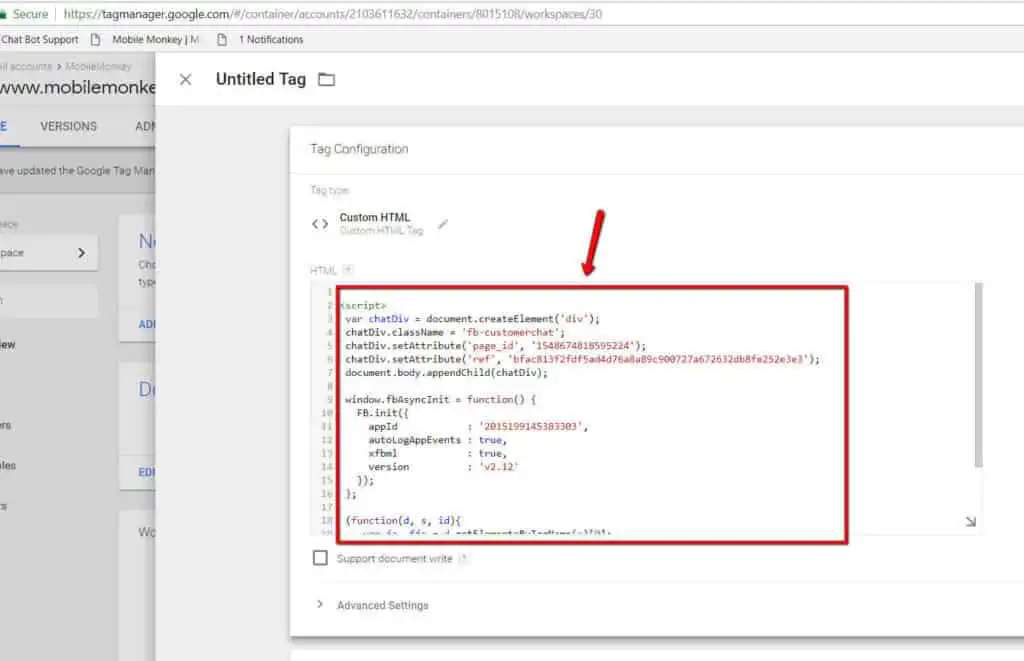
Step 3.
Paste the code provided by CORE CONNECT
<script async="async" src="https://mm-uxrv.com/js/business_abcdefghijklmnopqrstuvxyz.js"></script><script async="async" src="https://mm-uxrv.com/js/business_abcdefghijklmnopqrstuvxyz.js"></script>Step 4.
Click “Choose a trigger” and select “All pages”
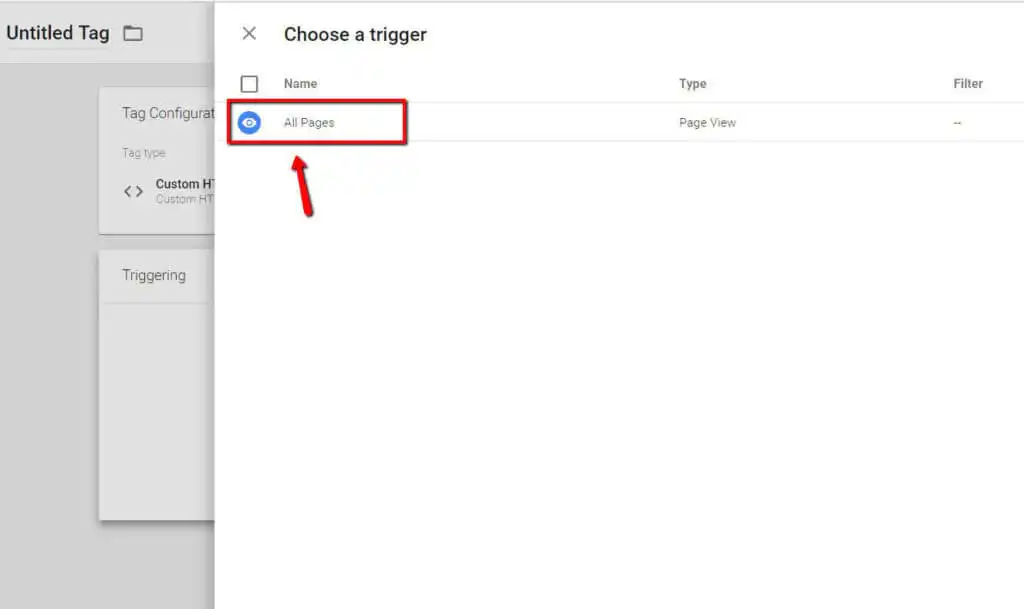
Step 5.
Name and save your tag.

WordPress Installation Guide:
This option is best if your site runs on WordPress and you do not use Google Tag Manager.
Step 1
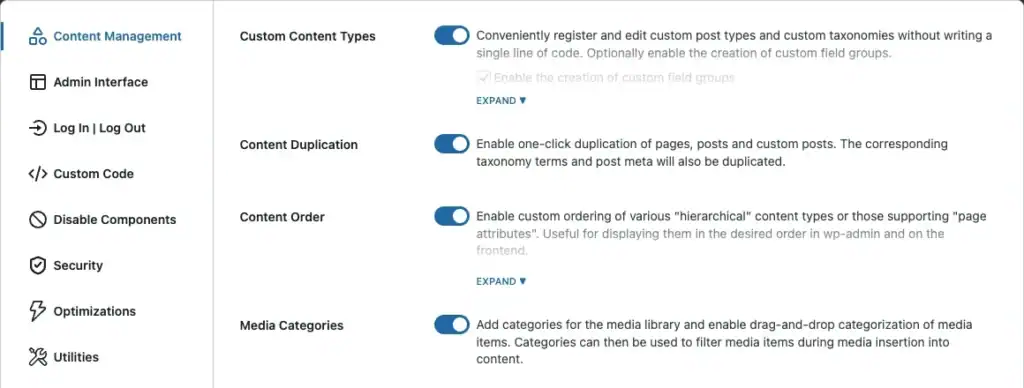
Install a script plugin on your website. If CORE CONNECT hosts your website, we will provide this free with your account. We recommend ASE https://www.wpase.com/
Step 2
Copy the code provided by CORE CONNECT in the Header of the Custom Code section
Step 3
In WordPress, open the ASE plugin settings.
Step 4
Paste the code provided by CORE CONNECT

Step 5
Click Save Settings.
Important note on caching
If your WordPress site uses any caching or performance plugins (such as WP Rocket, W3 Total Cache, LiteSpeed, or similar), you must clear all caches after saving the code for the pixel to activate correctly.
Shopify Installation Guide:
Shopify users will utilize two scripts. Our Reveal X-Ray Pixel and our Shopify Custom Events Area Code.
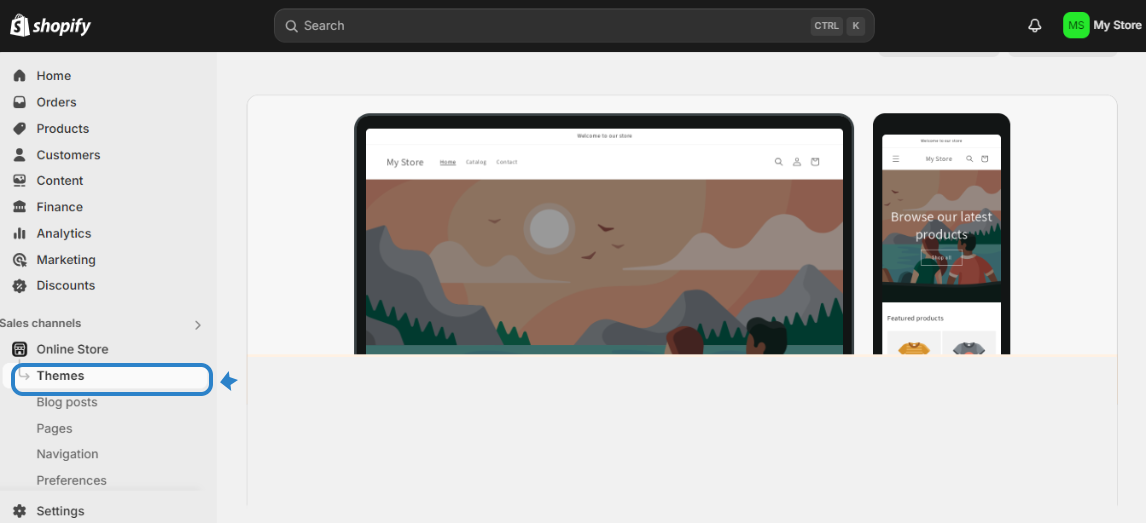
1. In your Shopify go to your Online Store and select Theme Editor.
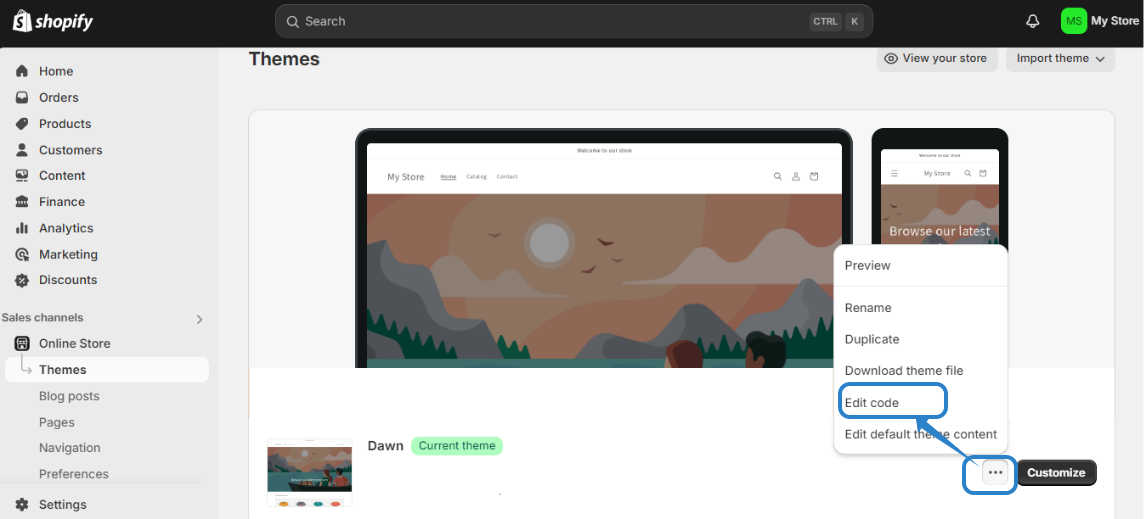
2. Click on the Ellipsis button beside Customize and select EDIT CODE.
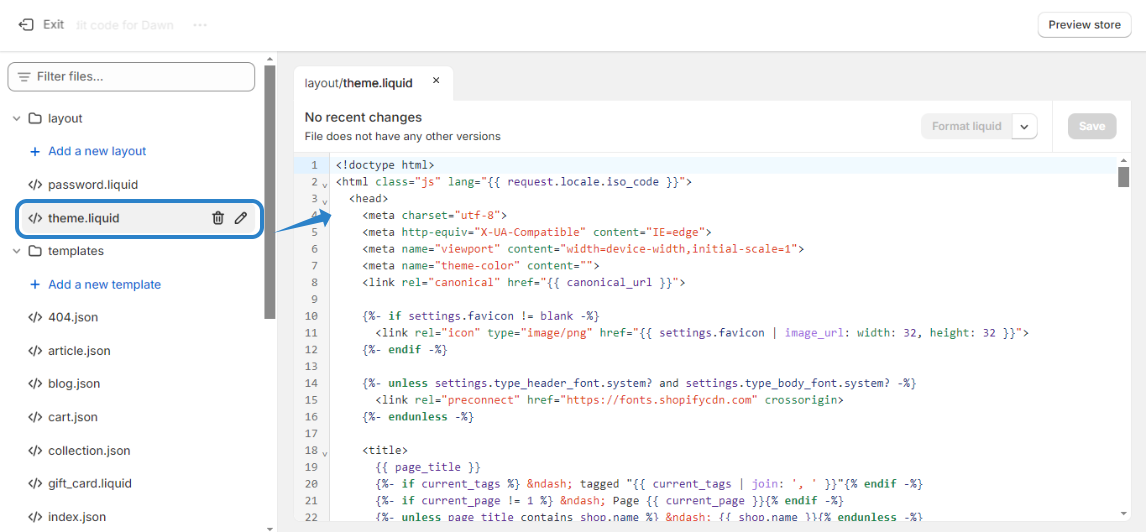
3. On “theme.liquid”, paste your Reveal X-Ray Pixel code directly below <head> and make sure to click save.
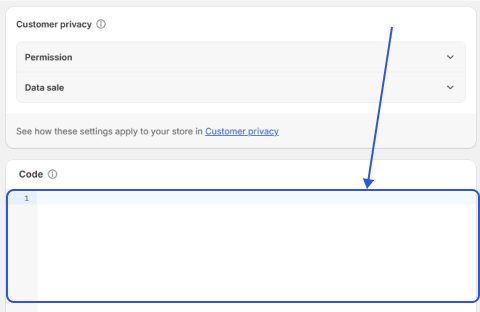
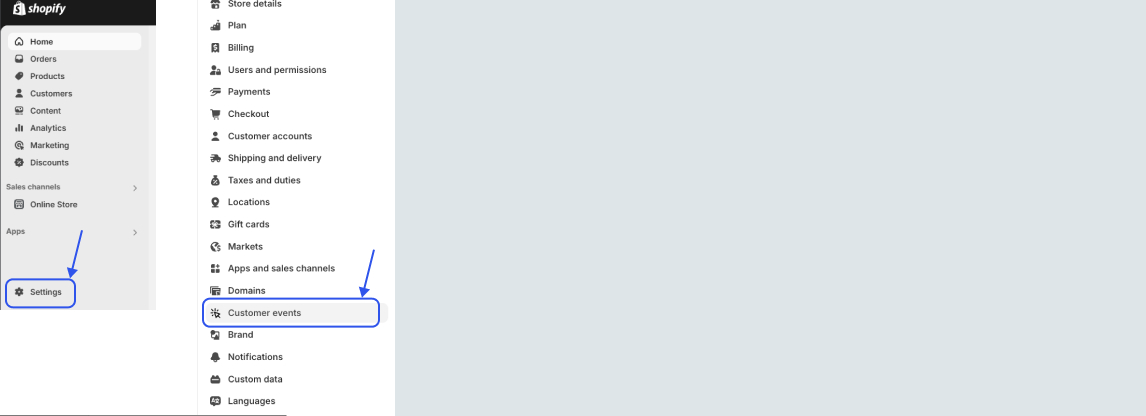
4. Now Go to your Store Settings, select “Customer events” and click ADD CUSTOM PIXEL.
5. Name your Pixel “Reveal Pixel”
6. Click “Not required” for permissions.
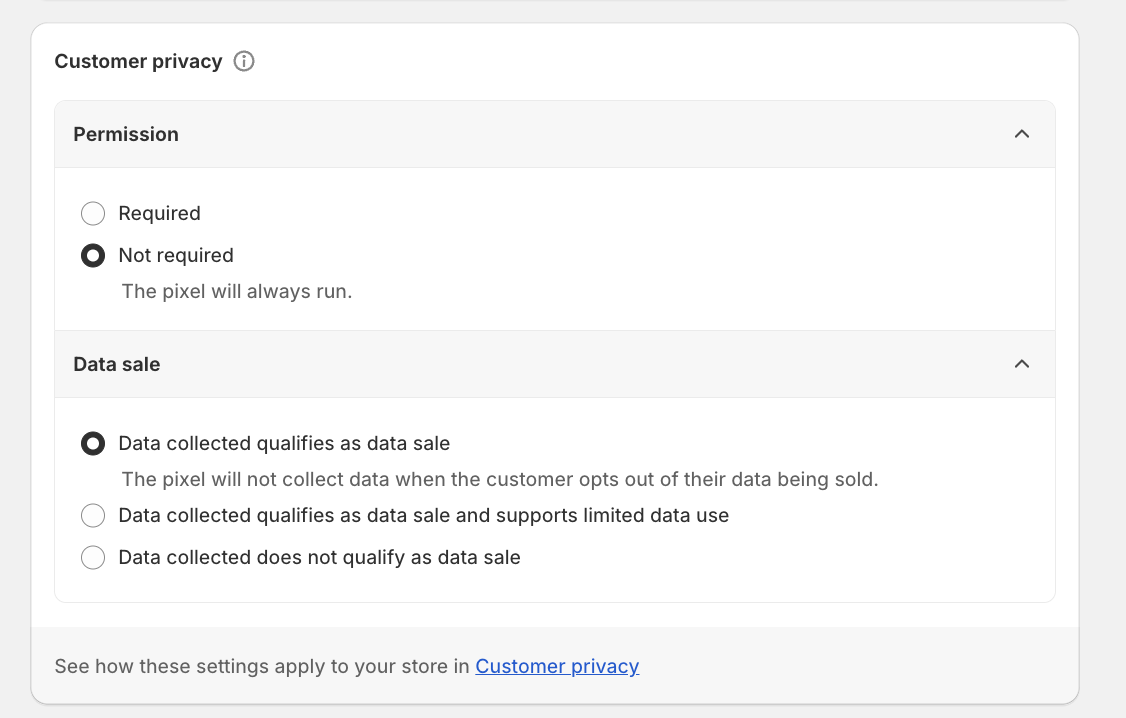
7. Copy your Shopify Custom Events Code and paste it into the “Code” field and click“Save”.